
UnrealPak Free Download for Windows PC (2026)
Build, inspect, extract, and secure Unreal Engine pak archives with a fast command-line workflow used by developers and technical modders.
Use Pak File
Package content into one or more .pak files for distribution.
Generate Chunks
Split data for staged delivery and platform-specific install flows.
Pak Signing
Use encryption keys and signatures to reduce data tampering risks.
What Is UnrealPak
UnrealPak is the archive tool used in Unreal Engine to create, inspect, and extract .pak files for packaged projects.
UnrealPak is a command line utility that ships with Unreal Engine. It is used during packaging to group cooked content into .pak archives that are easier to ship, patch, and protect. When developers search for an unrealpak download, the key point is that UnrealPak is not a separate paid app. You get it through an Unreal Engine install or a source build. It is useful for build engineers, technical artists, QA teams, and mod developers who need to inspect archive contents.
How UnrealPak fits the packaging process
During a normal build, Unreal Editor cooks assets, then packaging settings decide how those assets are stored. If Use Pak File is enabled, content is placed into one or more .pak files. UnrealPak can also list file entries, extract files to a folder, and apply compression flags when creating archives. Teams use this to test patch size, split data into chunks, and verify that required assets are present before release. Because the tool runs by command line, it works well in CI jobs and scripted release pipelines where repeatable output matters.
Pak files, security options, and Io Store
Pak files support encryption and signing settings that are configured in Unreal Engine project settings. Options such as Encrypt Pak Ini Files, Encrypt Pak Index, and Enable Pak Signing help reduce tampering and data mining in shipped builds. Unreal Engine also supports Io Store with .utoc and .ucas containers, and many studios use that path for newer projects. Even so, UnrealPak remains part of day to day troubleshooting because existing titles, mod tools, and patch checks still rely on pak workflows.
Who uses UnrealPak today
UnrealPak is used by developers shipping Unreal Engine games, by support teams validating package output, and by technical users learning how content is assembled. For fast testing, common commands include -create, -list, and -extract. These operations make it easier to debug missing files, verify cooked output, and track what changed between builds. If you need unrealpak free download for Windows 10 or Windows 11, the right path is to install Unreal Engine and run the bundled executable from the engine Win64 binaries folder.
Quick fact: UnrealPak versioning follows the Unreal Engine version you installed. There is no separate UnrealPak release channel with independent version numbers.
Current context: Epic documentation pages accessed on February 28, 2026 list Unreal Engine 5.7 content, and UnrealPak usage in that toolchain remains active for pak based packaging tasks.
Key Features
Ten practical UnrealPak features used in real Unreal Engine build pipelines.
Create Pak Archives
Build one or more .pak files from cooked assets with predictable output for release and test builds.
List Archive Contents
Use -list to print archive entries and check file placement, mount paths, and package completeness.
Extract Pak Files
Use -extract to unpack files for inspection, regression checks, and local debugging during QA.
Compression Support
Create compressed archives with command flags to reduce download size and storage usage.
Encryption Integration
Works with project encryption keys and pak encryption options set in Unreal Engine project settings.
Pak Signing Workflow
Supports signed package workflows used to reduce file tampering in shipped game builds.
Chunk Friendly Output
Fits chunk based patch strategy when Generate Chunks is enabled in packaging options.
Automation Ready CLI
Runs in scripts and CI environments with no UI dependency, useful for repeatable release jobs.
Version Matched to Engine
UnrealPak binary tracks your installed engine version, so behavior aligns with your project branch.
Fast Build Validation
Lets teams verify package output after cook, before release upload, reducing failed deployment cycles.
System Requirements
UnrealPak ships with Unreal Engine, so practical requirements follow Unreal Engine desktop packaging requirements.
| Component | Minimum | Recommended | Notes |
|---|---|---|---|
| Operating System | Windows 10 version 1703 or newer | Windows 10 64 bit (1909 .1350+) or Windows 11 | Windows is the most common UnrealPak runtime path for packaged builds. |
| CPU | 64 bit dual core processor | Quad core Intel or AMD, 2.5 GHz or faster | Higher core counts help when packaging and compression run with other build steps. |
| Memory | 16 GB RAM | 32 GB RAM | Large projects with many cooked assets can use significant memory during packaging. |
| Graphics | DirectX 11 capable GPU | DirectX 12 GPU with 8 GB VRAM | GPU is mainly for Unreal Editor work, not for UnrealPak command operations. |
| Storage | 20 GB free for toolchain and temp output | SSD with 100 GB or more free build space | Packaging, chunking, and staging can create large temporary folders. |
| Toolchain | Epic Games Launcher install of Unreal Engine | Unreal Engine 5.7 with Visual Studio 2022 | Visual Studio is needed for source based engine and project compilation tasks. |
| Linux or macOS use | Source build of Unreal Engine | Current source branch with build dependencies complete | UnrealPak may be built and run from source on non Windows systems. |
| Network | Not needed after install | Stable connection for engine updates | UnrealPak command usage works offline once the tool is present locally. |
Download UnrealPak
Choose your platform path. UnrealPak is bundled with Unreal Engine and does not have a separate installer.
Windows
Download the official Epic Games Launcher installer directly, install Unreal Engine, and then use the bundled UnrealPak from Engine\Binaries\Win64.
Linux
Linux UnrealPak workflows use Unreal Engine source builds. This direct archive link downloads the source branch zip from Epic's official UnrealEngine GitHub repository.
Direct Source ZIPmacOS
For macOS source-based setups, use the official UnrealEngine repository tarball link and follow Epic's build instructions for your Xcode toolchain.
Direct Source TAR.GZDownload note: UnrealPak does not have an official standalone installer. The direct links above are official Unreal Engine distribution paths (launcher installer or Epic GitHub source archives).
Screenshots
Real interface captures from Epic documentation and UnrealPak source pages used for packaging and patch setup.
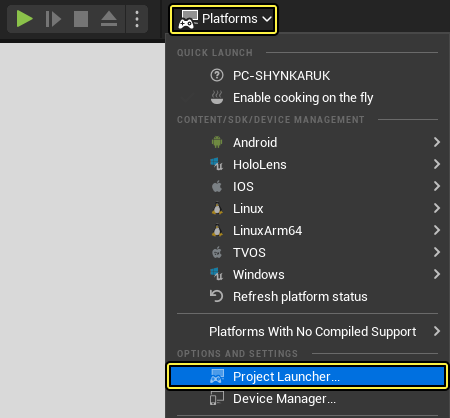
Project Launcher Entry Point
Reference capture from Epic patch documentation showing the custom launcher profile start point.
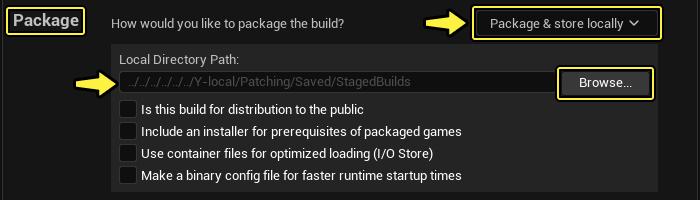
Package Section Settings
Package profile area where output options are configured before creating build artifacts.
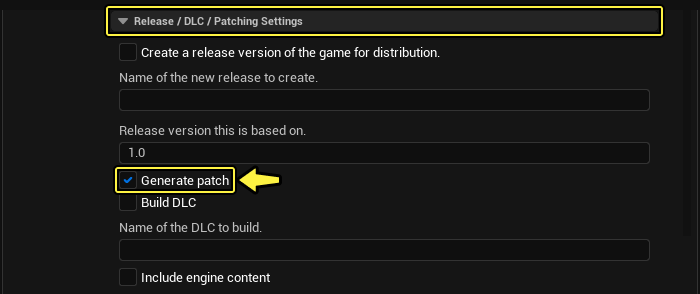
Patching Configuration
Settings panel used when preparing patch data and archive output in Unreal Engine workflows.
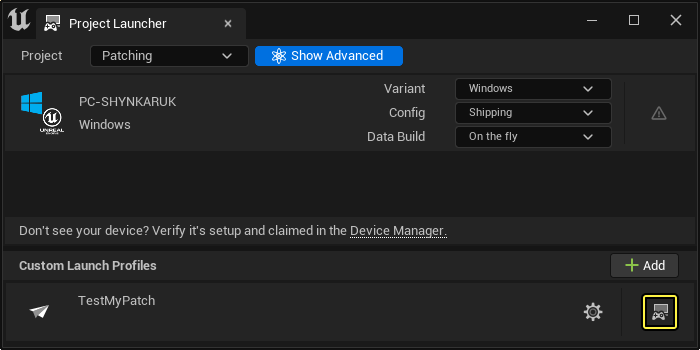
Launch Patch Build
Final launch action from the patch profile. UnrealPak related archive work runs during this phase.
Setup Guide
Follow this step by step UnrealPak setup path for a clean first run on Unreal Engine 5.x projects.
This guide covers location checks, command prompt setup, core commands, and common errors. Steps below assume Windows because that is the most common build host for UnrealPak.
Step 1: Install Unreal Engine and verify version
Install Unreal Engine through Epic Games Launcher. After install, open Launcher and confirm the engine version assigned to your project. If your project targets Unreal Engine 5.7, use the same version for packaging tools to avoid format drift in cooked data. UnrealPak is bundled inside this install; there is no separate official standalone package.
Step 2: Locate UnrealPak.exe on disk
Open File Explorer and go to your engine directory. Default path for launcher installs is often similar to C:\Program Files\Epic Games\UE_5.7\Engine\Binaries\Win64\UnrealPak.exe. If you use a custom engine path, search for UnrealPak.exe inside the Engine\Binaries tree. Keep the full path ready for first command tests.
Step 3: Open command prompt in the tool directory
Use PowerShell or Command Prompt and switch to the Win64 binaries folder with cd. Then run UnrealPak.exe with no arguments. If the executable is found, UnrealPak prints usage help and exits. If you see "not recognized as an internal or external command," either your current folder is wrong or PATH does not include the engine binary location.
Step 4: Test a basic list command
Pick any existing .pak file from a packaged project and run UnrealPak.exe MyGame-Windows.pak -list. This verifies that UnrealPak can open the archive and print entry paths. Keep output logs for build QA because list output is useful when checking if specific assets shipped in a release candidate.
Step 5: Run extraction to a clean folder
Create an empty target folder, then run UnrealPak.exe MyGame-Windows.pak "D:\PakExtract\" -extract. Use a new folder for each test so output is easy to inspect. If extraction fails, check file access permissions and confirm the pak is not encrypted with a key that is missing in your local setup.
Step 6: Create a test pak from staged files
To verify create mode, point UnrealPak at a file pattern or list file and run a command similar to UnrealPak.exe TestContent.pak "D:\StagedAssets\*" -create. Add -compress to test compressed output. Compare file size and open time with and without compression to choose defaults for your delivery target.
Step 7: Align project packaging settings
In Unreal Editor project settings, review Packaging options such as Use Pak File, Generate Chunks, and encryption and signing fields. UnrealPak behavior depends on these settings during cook and package jobs. If your team plans patch delivery, define chunk strategy early so archive structure stays stable between releases.
Step 8: Add repeatable build scripts
Place tested UnrealPak commands in batch or PowerShell scripts used by CI jobs. Include clear log file paths, exit code checks, and artifact naming rules. This prevents manual mistakes and gives release engineers the same result each run. Keep scripts in source control next to project build docs so updates stay visible for the full team.
Step 9: Troubleshoot common command issues
If UnrealPak is not recognized, call it with full executable path. If a pak cannot be opened, verify file path quoting and archive access rights. If encrypted archives fail, confirm the required key material is available to the runtime context. If output differs between machines, compare engine version, packaging flags, and script arguments line by line.
After this setup, you can extend into chunk tuning, signed release builds, and archive diff checks between releases.
Frequently Asked Questions
Direct answers for common UnrealPak setup, download, packaging, and command line issues.
Is UnrealPak safe to use?
Short answer: Yes, when it comes from an official Unreal Engine install or the official Epic GitHub source repository.
Safe usage checklist:
- Install Unreal Engine from Epic Games Launcher or build from the official EpicGames UnrealEngine repository.
- Verify file location under your engine folder before running commands.
- Avoid unofficial "standalone UnrealPak download" mirrors and repacks.
- Run packaging and extraction jobs in project-specific folders to prevent accidental overwrites.
In normal development workflows, UnrealPak is a standard packaging tool used by build engineers, QA teams, and release pipelines.
Where is UnrealPak.exe located on Windows?
Typical launcher path: C:\Program Files\Epic Games\UE_5.x\Engine\Binaries\Win64\UnrealPak.exe.
How to locate it quickly:
- Open File Explorer and go to your Unreal Engine install root.
- Open
Engine\Binaries\Win64. - Confirm that
UnrealPak.exeexists and matches your project engine version.
If you use a custom install path or source build, search for UnrealPak.exe within your engine directory and use that full path in scripts.
Can UnrealPak extract encrypted pak files?
Only with valid keys. If the archive uses index encryption or full payload encryption, UnrealPak needs matching key material.
What usually causes failure:
- Wrong key or key from a different build branch.
- Missing key provisioning in the environment where the command runs.
- Using a different engine version than the one used to package the archive.
If encrypted archives fail to list or extract, validate key source, packaging settings, and engine version alignment before debugging command syntax.
How do I enable Pak Signing in Unreal Engine?
Enable signing from project packaging/security settings, provide your signing key configuration, and then package a verification build.
Recommended rollout sequence:
- Configure keys in a secure environment (never commit secrets to public repos).
- Enable signing for your target profile.
- Package a staging build and run smoke tests on target platform.
- Validate launch, patch, and update behavior before production release.
Signing should be managed with the same controls as other release secrets: restricted access, audit logs, and key rotation policy.
Does UnrealPak work on Windows 11?
Yes. UnrealPak runs on Windows 11 as part of Unreal Engine installations and is widely used in UE5 packaging pipelines.
Practical recommendations:
- Use an engine version matched to your project branch.
- Run packaging on SSD storage for faster staging/extraction.
- Keep antivirus exclusions tuned for build folders to reduce I/O slowdowns.
If a script works on Windows 10 but fails on Windows 11, compare PATH, permissions, and terminal context first.
How do I fix "UnrealPak is not recognized" in terminal?
This is usually a path-resolution issue, not a missing tool issue.
Fix it in order:
- Run with absolute path:
"C:\Program Files\Epic Games\UE_5.7\Engine\Binaries\Win64\UnrealPak.exe" -list. - If successful, add the same folder to your user or system PATH.
- Open a new terminal session and retest with
UnrealPak.exe -list. - In CI, prefer absolute paths to avoid agent-specific PATH drift.
If it still fails, verify the executable exists in that exact engine version folder.
What does the Use Pak File option do?
It tells Unreal packaging to bundle cooked assets into .pak archives instead of distributing loose file trees.
Why teams enable it for releases:
- Cleaner distribution structure.
- Easier patch and chunk management.
- Better alignment with encryption/signing workflows.
- More predictable archive validation in QA.
For quick local debugging, some teams temporarily use loose files, but production pipelines commonly keep Use Pak File enabled.
What is the difference between UnrealPak and Io Store?
UnrealPak is the classic .pak archive workflow. Io Store is the newer container system using .utoc/.ucas files.
At a high level:
- UnrealPak: .pak-based packaging, familiar tooling, broad legacy usage.
- Io Store: modern container layout used in newer UE workflows and platform targets.
Your project, engine version, and platform requirements determine which route is best. Many teams still need to understand both for migration and maintenance.
Can UnrealPak create compressed pak files?
Yes. Compression is supported through create-mode flags such as -compress.
Tradeoff to evaluate:
- Smaller distribution size and lower transfer bandwidth.
- Potentially longer packaging time and different runtime I/O behavior depending on platform.
Benchmark both compressed and uncompressed builds with representative project data before setting a permanent release default.
Is there an official standalone UnrealPak download?
No. UnrealPak is distributed as part of Unreal Engine, not as an independently versioned public installer.
Official acquisition paths:
- Install Unreal Engine through Epic Games Launcher.
- Build Unreal Engine from Epic's official source repository.
Any third-party site offering a separate UnrealPak installer should be treated cautiously and verified before use.
Can I unpack any game archive with UnrealPak?
Not always. Access depends on technical compatibility and legal permission.
Common blockers:
- Archive encryption/signing without available keys.
- Engine version or format mismatch.
- License terms, EULA restrictions, or anti-tamper protections.
Only inspect archives when you have rights to do so and when your environment has the required keys and compatible engine tooling.
How do I list files inside a pak archive?
Use a list command such as UnrealPak.exe MyGame.pak -list from a terminal with access to the executable.
Recommended QA pattern:
- Run
-listfor each release candidate archive. - Redirect output to text files.
- Diff outputs between builds to detect missing or unexpected assets.
List output is one of the fastest ways to verify package content before publishing updates.
What is Generate Chunks and when should I use it?
Generate Chunks splits packaged assets into chunk groups so clients can download/update content in smaller parts.
Use it when:
- You need staged installs or selective content delivery.
- You want patch updates that do not force full redownloads.
- Your platform/distribution flow benefits from segmented packages.
Define chunk strategy early in production. Late chunk layout changes can increase patch size and complicate release operations.
How can I verify archive integrity after packaging?
Use a layered validation approach instead of a single check.
Recommended integrity workflow:
- Run
-listand compare entries against expected manifest/output rules. - Validate archive size and timestamp patterns against CI artifacts.
- Launch packaged build smoke tests on target platform.
- When signing is enabled, include signature and key-path checks in QA gates.
This combination catches both content-level mistakes and pipeline-level regressions before release.
Which Unreal Engine versions include UnrealPak?
UnrealPak has been included for many engine generations and remains part of active UE5 toolchains. As of February 28, 2026, official Unreal Engine docs and release references include UE 5.5, 5.6, and 5.7 contexts.
Best practice: always use the UnrealPak binary from the exact engine version your project is built with.
Mixing binaries across engine versions can cause packaging mismatches, command behavior drift, or archive compatibility issues in automation.